FAQ
Short answers about TRACKING, connecting your MT4/MT5 account, reading your results and the TrendPax tools.
Getting started
What is TrendPax?
TrendPax brings together tools for MT4 and MT5 traders. The main one is TRACKING, a dashboard that measures the results of your account and of each EA separately. There are also programs like News Advisor, which alerts you before high-impact news.
What do I need to get started?
A free TrendPax account, an MT4 or MT5 account and your MetaTrader terminal open. You install a small read-only EA, the publisher, in MetaTrader, and your data shows up in the dashboard. We never ask for any password from your broker.
Can I see it before signing up?
Yes. The demo shows the full dashboard with a made-up account, no sign-up needed. It is the same screen you will see with your own account.
How much does it cost?
You can start for free, no card needed. The Free plan includes 2 MT4/MT5 accounts. See what each plan includes in Plans.
Does it work with cTrader or other platforms?
For now, only with MetaTrader 4 and MetaTrader 5.
Connecting my MT4/MT5 account
How do I connect my account?
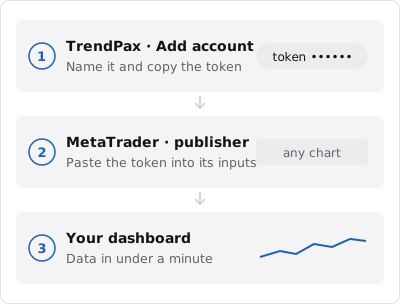
Three steps: in My accounts, click "Add account", give it a name and copy its token. Then install the publisher in MetaTrader and paste the token into its inputs. The wizard walks you through it and tells you when the first data arrives.
What is the publisher? Can it trade on my account?
The publisher is a read-only EA that sends TrendPax your history, your open positions and your equity. It does not open, modify or close trades. Put it on any one chart, one per account.
Where do I paste the token?
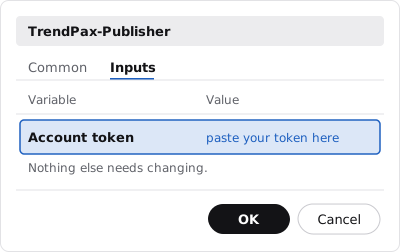
When you drag the publisher onto a chart, its window opens. In the inputs tab, paste the token into "Account token" and click OK. Nothing else needs changing.
What is the WebRequest URL and where does it go?
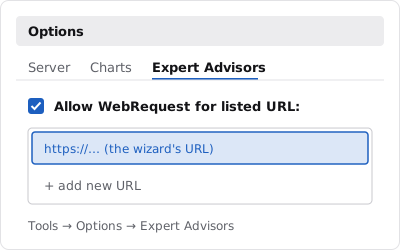
MetaTrader only lets an EA send data to addresses you allow. Go to Tools → Options → Expert Advisors, tick "Allow WebRequest for listed URL" and add the URL the wizard shows you when you connect the account.
My account won't connect: what should I check?
Check, in this order: that the "Algo Trading" (MT5) or "AutoTrading" (MT4) button is on, that the WebRequest URL is added and that the token belongs to that account. If it still won't connect, MetaTrader's "Experts" tab tells you what is going on. On MT4, also choose "All History" in the "Account History" tab so the full history is sent.
Does MetaTrader need to stay open?
Yes: the publisher sends data while the terminal is open. If you close it, the account shows as "Offline"; when you open it again, the trades closed in the meantime are sent. If you want minute-by-minute data all day, use a VPS.
How long until my history shows up?
The first data arrives in under a minute. The trade history takes a few minutes more, and the equity curve rebuilt from the start of the account takes from a few minutes to half an hour, depending on how old it is.
I lost the token or changed computers
For security, the token is shown only once. In the account settings, click "Regenerate token" and paste the new one into the publisher. The old token stops working straight away.
Understanding my results
What do I see in the dashboard?
The Summary shows your balance, the equity curve and the key figures: net result, profit factor, win rate and drawdown, among others. From the menu you can go to the calendar, each EA, each symbol, live risk and the trade list. Explore it in the demo.
Does the result include commissions and swaps?
Yes. The net result of each trade adds up its profit, commission and swap, just like MetaTrader's history.
Why does a partial close count as one trade?
If you close a position in several parts, TrendPax counts it as one trade: the one you opened. Counting each part would inflate the number of trades and the win rate.
Which time zone does the calendar use?
Your broker's server time, the same you see in MetaTrader. That way each day's result matches the day in your terminal, wherever you live.
What is drawdown?
It is the fall from your account's highest point to the lowest point that came after it. Maximum drawdown is the largest of those falls in the period you choose: how far the account dropped at its worst.
What is live risk?
It is what you have at stake right now in open positions: how much you would lose if every stop were hit, which positions have no stop and how exposed you are to each currency. See it in the demo.
What are MAE and MFE?
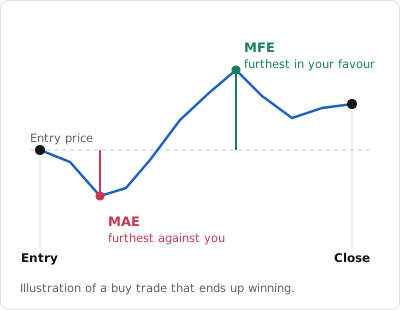
MAE is the furthest a trade went against you before it closed; MFE, the furthest it went in your favour. They help you set stops and targets: if hardly any winner goes far against you, your stop may be able to be tighter. See it in the demo.
Strategies and EAs
What is the magic number?
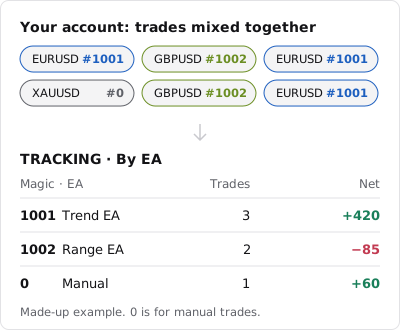
It is a number each EA puts on its trades to recognise them as its own. You set it in the EA's inputs. Manual trades carry 0. TrendPax uses that number to split the results of each EA.
How do I see each EA on its own?
"By EA" has one row per magic number, with its trades, result, profit factor, drawdown and last trade. Click a row to open the EA's page, where you can also give it a name. See it in the demo.
Do I need a different magic number for each EA?
It is strongly recommended. If two EAs share a number, their trades get mixed and nobody can split them later. Also use a different number for each copy of an EA with other settings.
What about my manual trades?
They show up together under magic number 0. To split them, "Manual strategies" lets you group them by strategy with a code in the order comment or a time rule.
How do I compare an EA with its backtest?
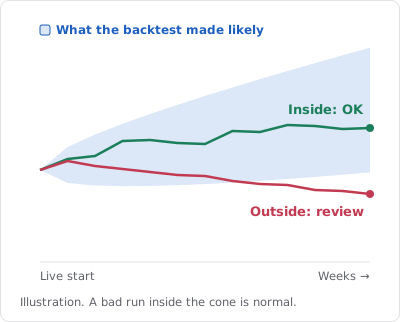
On the EA's page, upload the MT4 or MT5 Strategy Tester report, or the StrategyQuant X trade list. TrendPax draws the Monte Carlo cone of that backtest and puts the EA's live curve on top.
How do I read the Monte Carlo cone?
The cone is the range of results the backtest made likely, week by week. If the live line stays inside, the EA is behaving as expected, even in a losing run. If it drops below and stays there, it is time to review it. The verdict is only a guide until the EA has 30 live trades.
How do I know if two EAs do the same thing?
In "Compare EAs" you pick two or more EAs and see their curves together. If their daily results move almost the same way, TrendPax warns you: you are not diversified, you have the same bet twice. See it in the demo.
Tools
What is News Advisor?
It is a free Windows program that alerts you a few minutes before each high-impact news release. It also shows the estimated bias of the major currencies around each release. The alert reaches your PC, your own Telegram bot or both. See News Advisor.
What does "estimated bias" mean?
It is an indicative estimate, made with fixed rules and historical data, of where currencies tend to move after a release. It is not a trading signal or a recommendation, and it may not play out. Trading leveraged products carries a high risk of loss.
How do I activate News Advisor?
In Licenses, click "Generate key" on News Advisor and copy the key: it is shown only once. Download the program, install it and paste the key when it asks.
On how many computers can I use it?
Each News Advisor licence works on 2 computers. If you change computers, regenerate the key in Licenses: the computers are released and you enter the new key on the ones you use.
Windows says "Windows protected your PC" when installing
It appears because the program is not digitally signed yet. To install it, click "More info" and then "Run anyway". If you like, first check the installer's SHA-256 fingerprint, published on the News Advisor page.
Account and plans
What does the Free plan include?
TRACKING with 2 MT4/MT5 accounts and News Advisor, no card needed. See the details in Plans.
Will there be paid plans?
Yes, with more accounts and advanced features. They cannot be purchased yet: when they are available they will appear in Plans.
How do I delete an account or my user?
To delete an MT4/MT5 account, open its settings and click "Delete permanently". To delete your user with all your data, go to Settings. Neither can be undone.
Can I change the language or the light/dark theme?
Yes, with the buttons in the header, on any page.
Privacy and security
Do you need my trading account password?
No. TrendPax never asks for your master password or your investor password. The publisher identifies itself with the account token, which can only send data to TrendPax.
Can TrendPax trade or move my money?
No. The publisher is read-only: it does not open, modify or close trades, and it has no access to deposits or withdrawals.
Who can see my data?
Only you. Nobody else sees your accounts unless you create a link to share them, and in % mode that link shows no amounts at all. More details in the privacy policy.
What if someone gets my token?
The token gives no access to your dashboard or your broker account: it can only send data to that TrendPax account. Still, if you think it has leaked, regenerate it in the account settings and the old one will stop working.
Risk warning. TrendPax is an information tool and not investment advice. Trading forex, CFDs and other leveraged products carries a high risk of loss and may not be suitable for everyone. Past results, live or backtested, do not guarantee future results.